
How do I cancel my Subscription?
Cancelling a subscription will prevent any additional renewal orders on the account.
Your Crypto Vigilante and Dollar Vigilante subscriptions will renew automatically by default. To stop the auto-renewal process and avoid unwanted charges, please make sure to cancel your subscription before the renewal date.
Depending on when you signed up there are different ways to cancel, so please look below to find the way to cancel, or you can always reach out to us at [email protected]
1) If you signed up recently or have a trial.
First, log into your account https://dollarvigilante.com/securelogin/
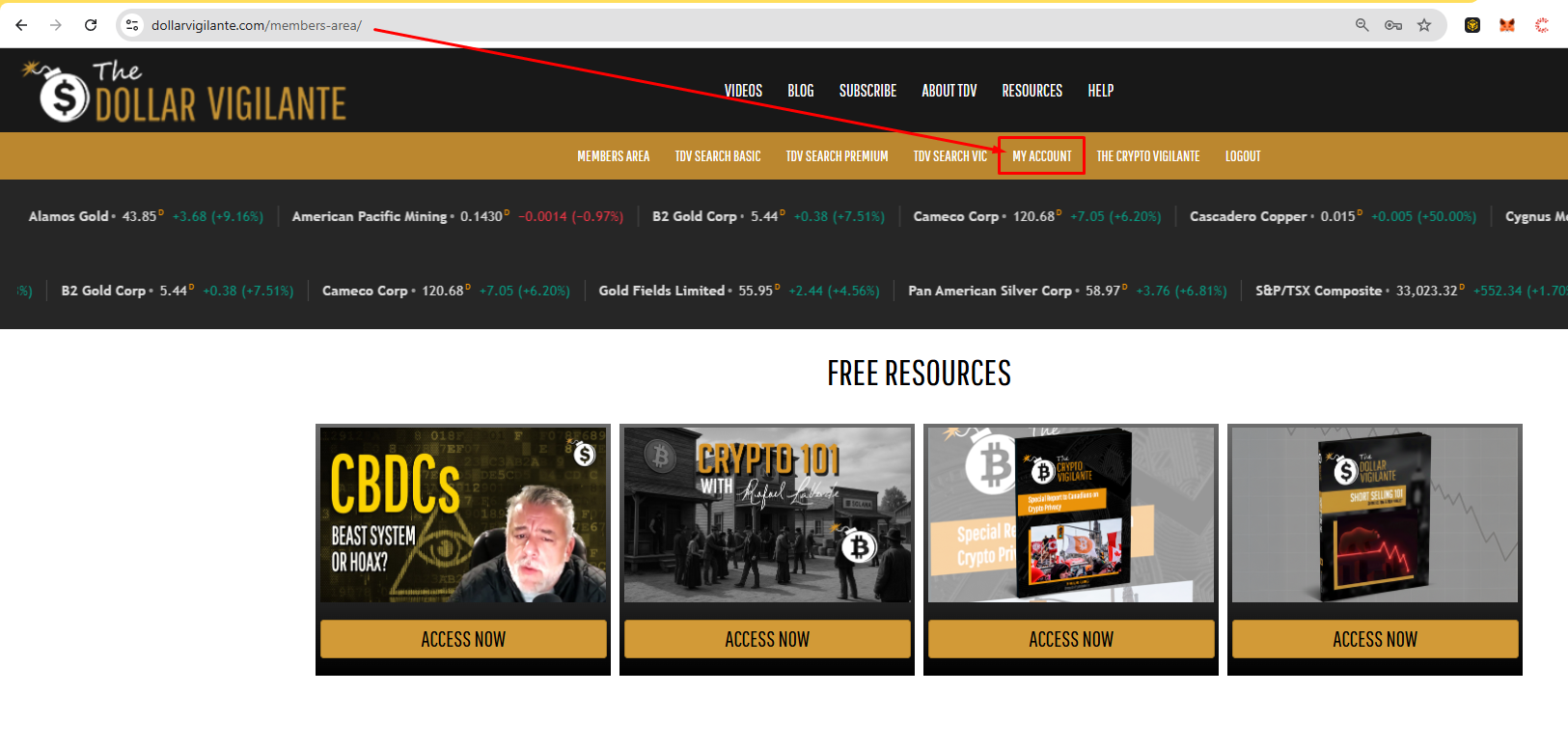
Once signed in, click on "My Account" in the navigation bar on the top, as shown below:
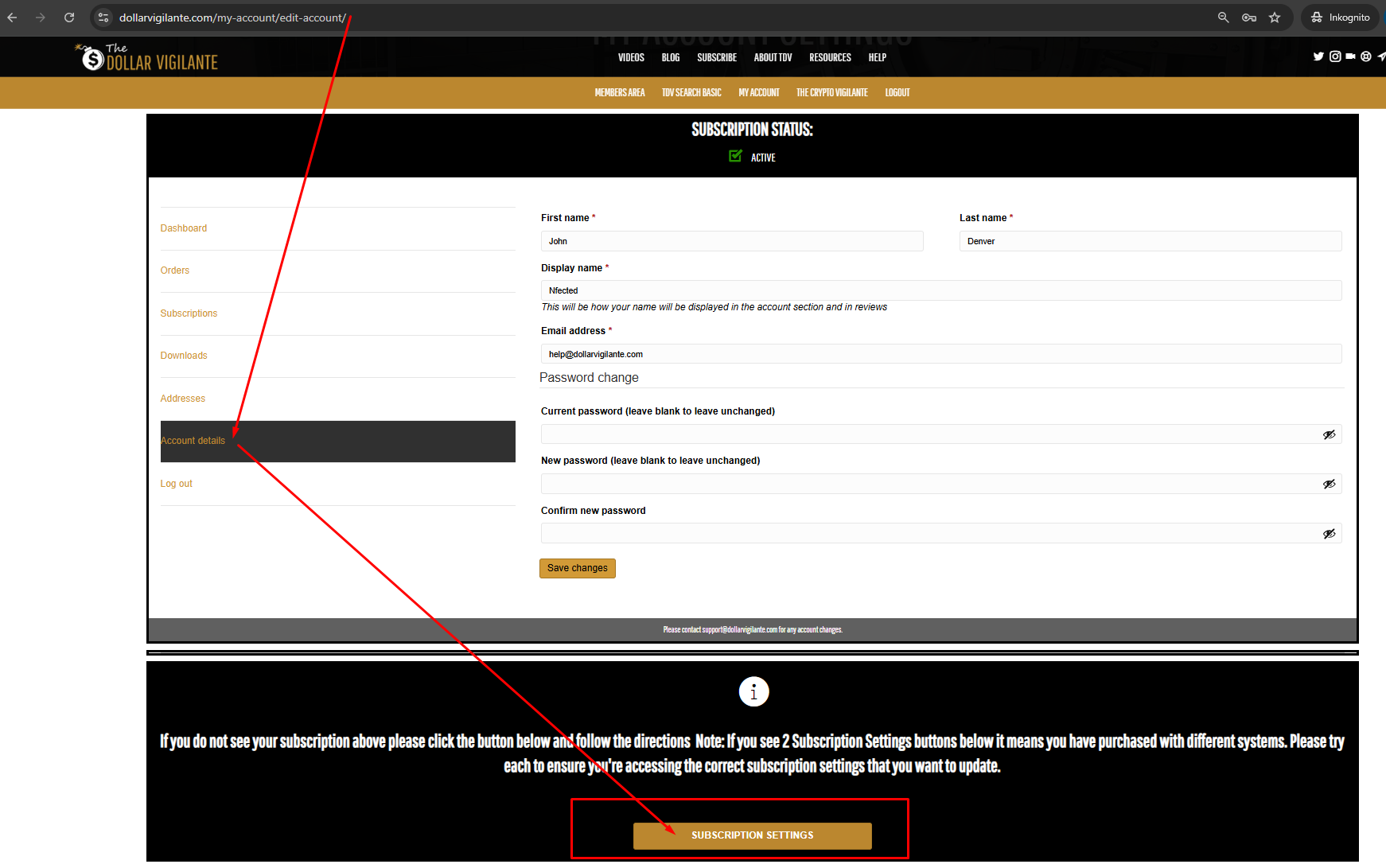
Now go under "Account details" to the left, and after that navigate to the buttom, where you will find a button saying "Subscription settings" go ahead and click that.
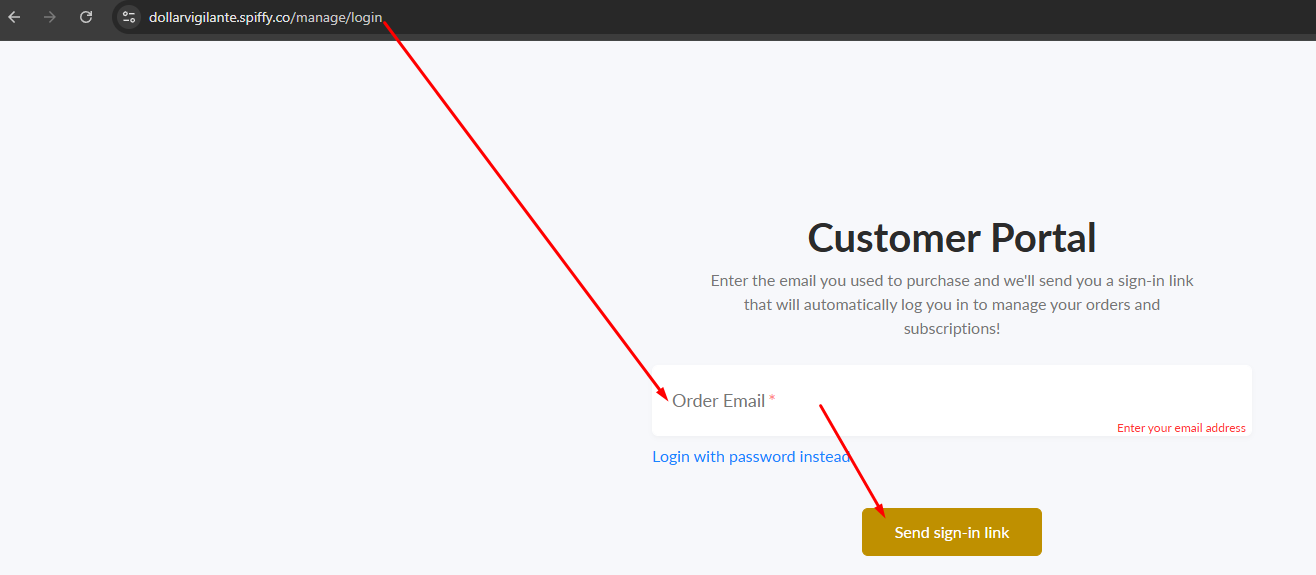
Type in the email address you used to order your subscription with and press "Send sign-in link"
You will recieve an email sent from "[email protected]" with topic "Billing sign-in for Vigilante Enterprises LLC" now press the "Login" button in that mail then you can manage you subscription.
Now click on your subscription as shown below.
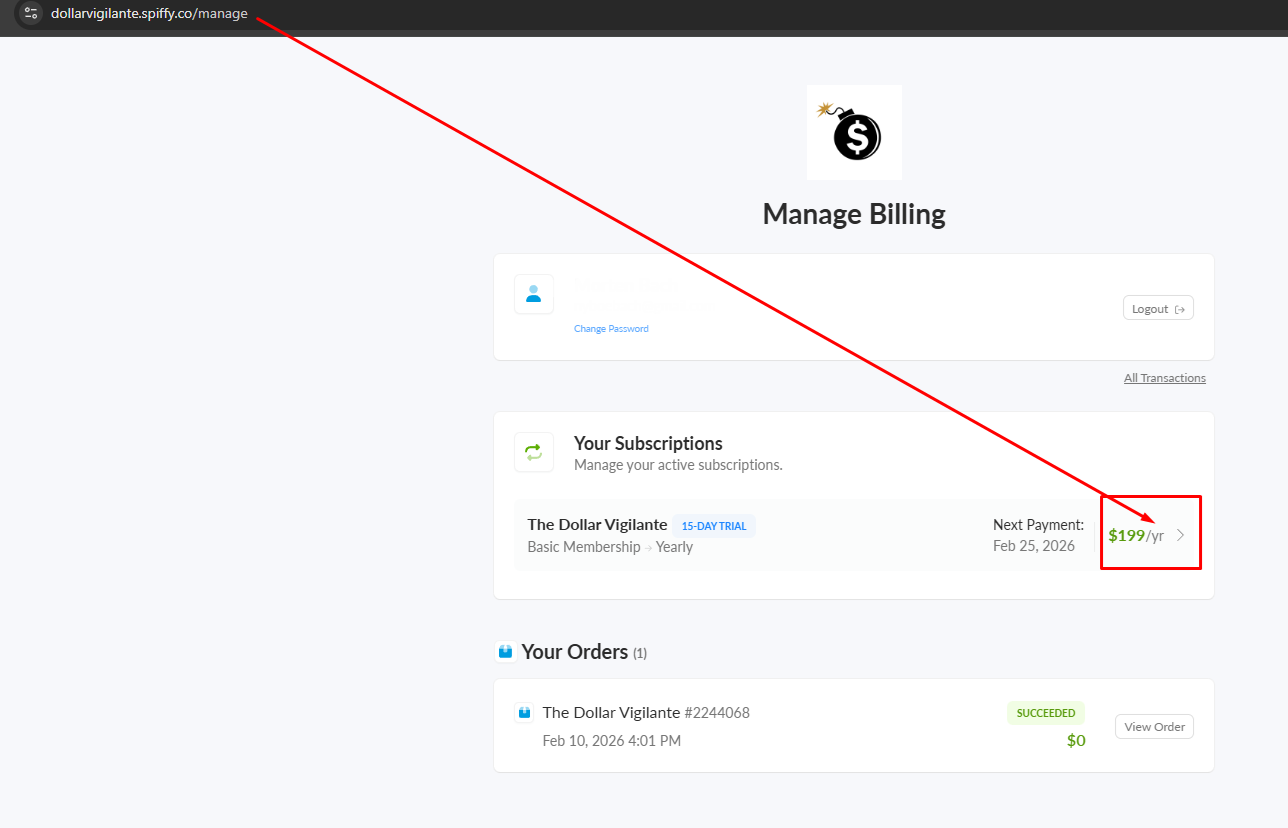
And you can now press "Cancel subscription"
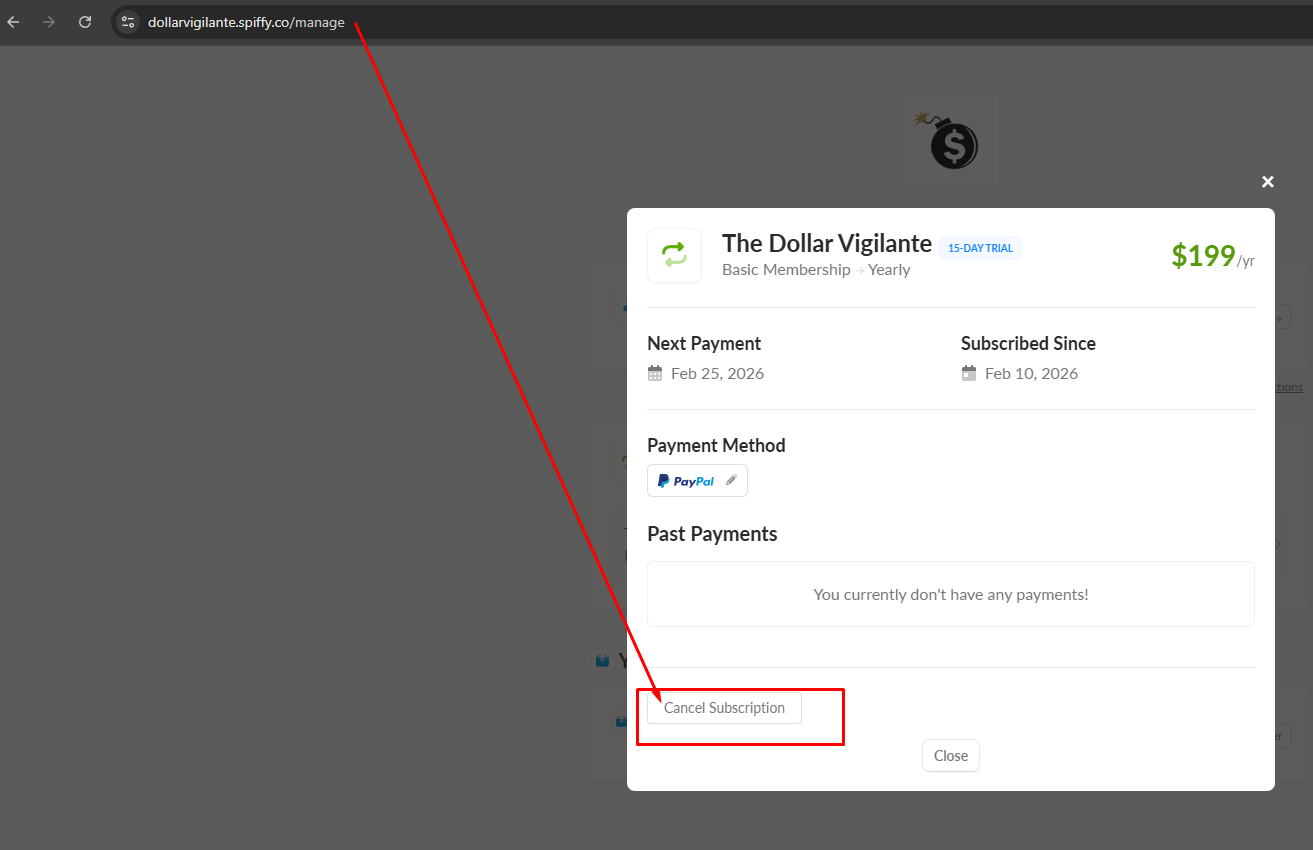
And now confirm that you want to cancel and press "Cancel Subscription"
We value your feedback and always aim to improve, so please leave a cancellation reason.
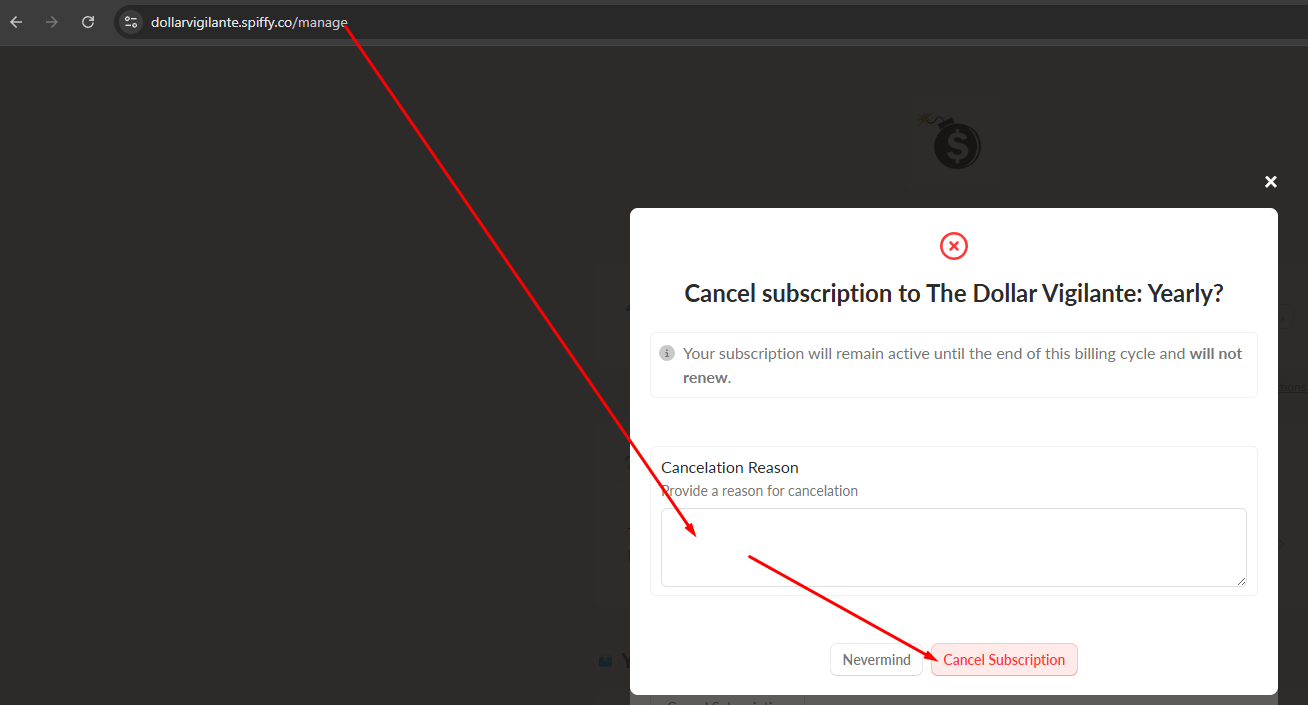
Your subscription is now cancelled.
2) Paid With Crypto or before January 2021
If you purchased your subscription before January 2021 or have purchased the subscription in cryptocurrency, this is the process to cancel your subscription.
First, log into your account https://dollarvigilante.com/securelogin/
Once signed in, click on "My Account" in the navigation bar on the top, as shown below:
Then, click on "My Subscription" in the side panel.
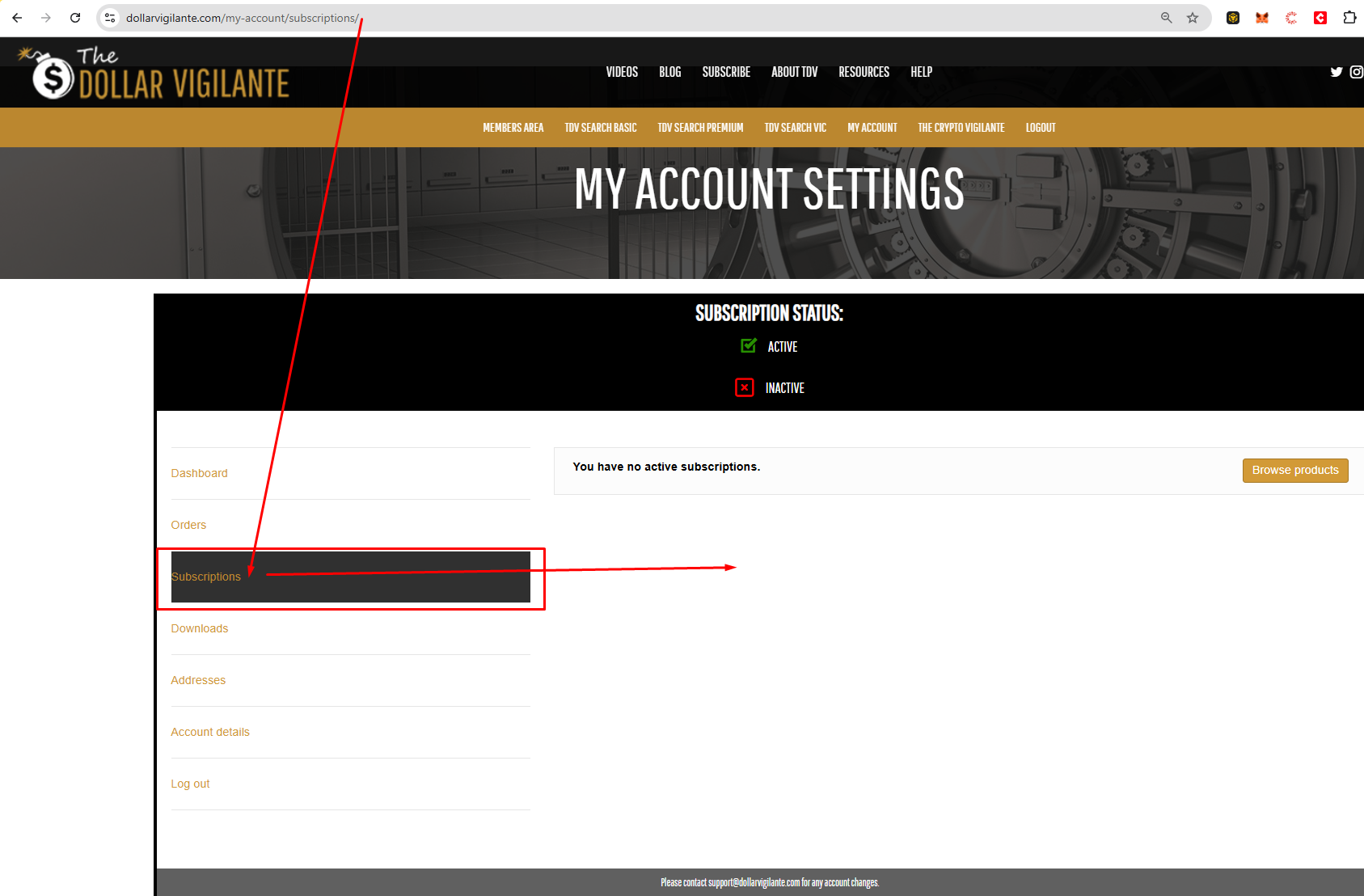
Your subscription will then appear to the right with a cancel subscription button, click that and confirm cancellation.
3) If you signed up between 2021 and 202?
To cancel your subscription(s) with us, navigate to the following page:
https://cart.dollarvigilante.com/updateinfo/

This is where you can update your billing information.
Once here, enter the email used at sign up. Be sure the spelling is correct and there are no typos, and be sure that this is the email used for your account with us l.
If you don't see your email in this system, you may have purchased the subscription with cryptocurrency or are on our older, legacy system. Please see this article on how to cancel for legacy accounts
If you are unable to locate the email that was sent to you, wait 15 minutes and check the Spam, Trash, or Promotions folder in your inbox.
Next, you will see a message that says to check your email. In your email you will receive a message with a link to view your account.

Once you click on the link in the email, you will see three options. Click on the "Subscription" option:

Here you will see your subscriptions. Note that all subscriptions are considered trials. There is no difference between Trials and Current in terms of level of access..  Click on "View" on the subscription you wish to cancel. Finally, you can click cancel subscription:
 Once your subscription is cancelled you will see it in the Cancelled section.You will continue to receive our subscription content up until the day your subscription expires or your next quarterly/annual payment was set to be made.
If you wish to request a refund of a recent unwanted charge, under 30 days from billing date (does not apply to TCV subscriptions) or an immediate cancellation please contact support